
Phone uploads are often soft, noisy, or lit from one side. POST /v2/photoEnhance improves clarity and can scale the image. POST /v2/removeShadow reduces shadows when facial detail is still in the file. Neither call crops to a passport specification or decides that a photo meets a document rule. That remains the Passport Photo API. Pose, expression, and glasses are a different product: fix passport photo problems, and only where an edit is allowed.
Lighting and clarity, not a new face
The Photo Enhance API docs are explicit: the endpoint can help with moderate softness, noise, or insufficient resolution, and it cannot recover detail that is not in the source. Face enhancement is optional and off by default. The docs also say face enhancement may change small image details, so review the result before an identity-sensitive workflow.
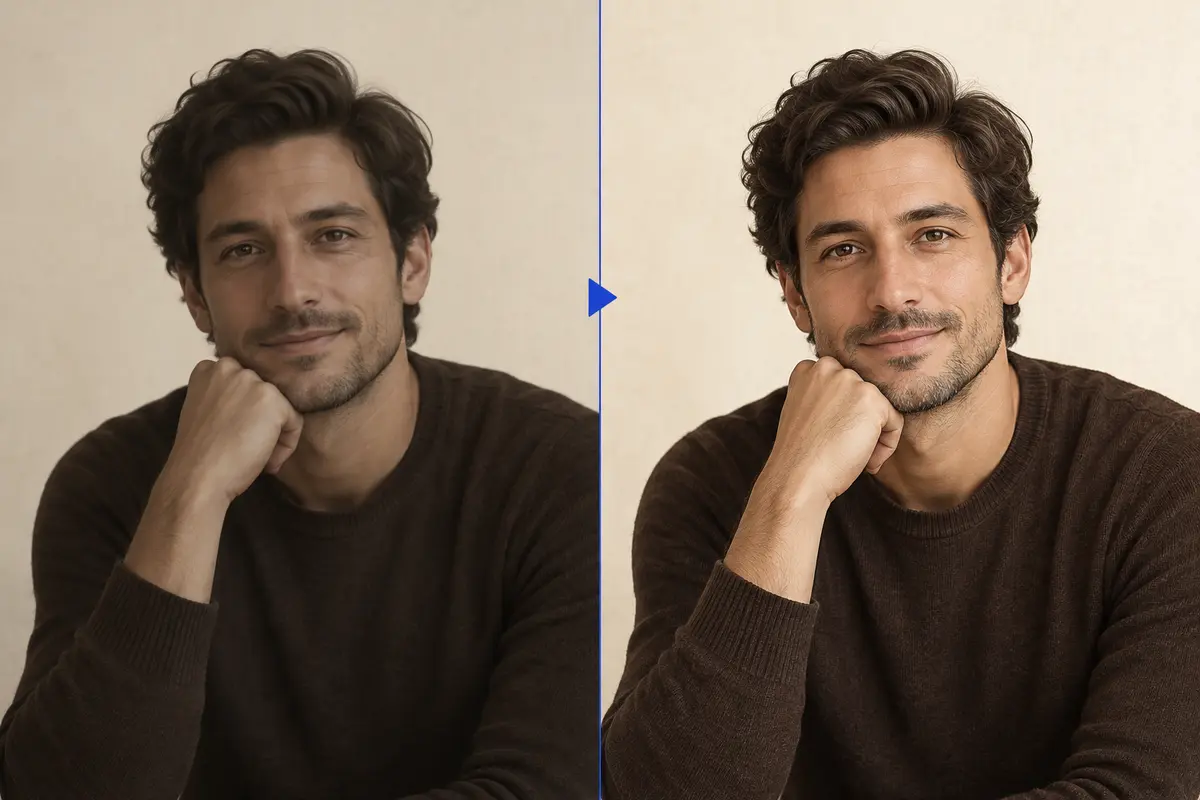
Photo Enhance request and response
Hosts are https://api-us.idphotoapp.com and https://api-eu.idphotoapp.com. Keep credentials on your server.
curl -sS -X POST "https://api-us.idphotoapp.com/v2/photoEnhance" \
  -H "Content-Type: application/json" \
  -d '{
    "apiKey": "YOUR_API_KEY",
    "apiSecret": "YOUR_API_SECRET",
    "imageBase64": "data:image/jpeg;base64,...",
    "scaleFactor": 2,
    "enableFaceEnhance": true,
    "outputFormat": "JPEG",
    "outputType": "IMAGE_BASE64"
  }'
{
"output": "/9j/4AAQSkZJRgABAQ..."
}| Field | Default | What it does |
|---|---|---|
scaleFactor | 1 | Integer scaling factor. Start with the lowest value that meets your output size. |
enableFaceEnhance | false | Extra processing on the face region. Review before you use the file as an identity photo. |
outputFormat | JPEG | JPEG or PNG. |
outputType | IMAGE_BASE64 | The response output is Base64 without a data-URI prefix. |
Shadow removal is its own call
Shadow removal is POST /v2/removeShadow. Use it when light is uneven and the shadowed area still has visible facial detail. It does not resize to a document, replace the Passport Photo API, or tell you the photo passes a spec. Clipped highlights and fully black regions may have nothing left to recover.
{
  "apiKey": "YOUR_API_KEY",
  "apiSecret": "YOUR_API_SECRET",
  "imageBase64": "data:image/jpeg;base64,...",
  "outputFormat": "JPEG",
  "outputType": "IMAGE_BASE64"
}
The response is the same shape: output as Base64. Decode it before you pass the bytes to another step.
Where enhancement is the wrong tool
US and UK passport rules do not accept a digitally enhanced or AI-edited likeness. The US Department of State says not to upload a photo created or edited with artificial intelligence or other digital tools. UK digital photo rules require an unedited photo. For those documents, detect problems and ask for a new capture. Do not enhance the face to clear a rejection.
Employee badges, member cards, and internal directories are different if your customer’s policy allows a cleaned-up portrait. Confirm that before you set enableFaceEnhance to true.
Apps, studios, agencies, and HR
- Passport photo apps. Use issue codes from the Passport Photo API to explain blur or uneven light, and send the person back to the camera. Offer enhancement only for non-government uses you have cleared.
- Studios and booths. Lift a recoverable shadow on a staff or school portrait before you print a sheet. A booth that issues UK passport photo codes should not “correct” the person.
- Agencies. Run a consistent enhance step across a set of source files, then review faces before delivery. Severe blur will not become a sharp capture.
- HR and security. On employee badge photos, shadow removal can even out a window-lit selfie when the badge policy allows it. Pair it with a badge
specCode, not with a beauty pass.
Limits from the docs
- No documented portrait, product, or document “mode.” The controls are
scaleFactorandenableFaceEnhance. - Severely blurred, overexposed, underexposed, or very small faces may not contain enough information to restore.
- One image per request. There is no batch array on this endpoint.
- Enhancement does not return
issues, pixel dimensions for a spec, or a photo code.
How to call enhance and shadow removal
- Store the API key and secret on the server that receives the upload.
- Call
/v2/photoEnhancewithscaleFactorat 1 unless you truly need a larger file. Turn onenableFaceEnhanceonly after you have looked at sample output. - If the complaint is one-sided light rather than softness, call
/v2/removeShadowinstead of, or before, a scale-up. - Decode
outputand, when the workflow needs a document file, send it toPOST /v2/makeIdPhoto. Read photo issue codes on that response. - Do not log credentials or the full image. Transmission is encrypted. See the data privacy policy.
Why use this instead of a general upscaler
The two endpoints match the failures ID-photo products actually see: a soft capture, and a shadow across the face. Defaults are conservative (scaleFactor 1, face enhancement off). You can hand the bytes straight to the specification API your app already calls, and you have a written boundary for government photos where enhancement is the wrong product.
FAQ
Does photo enhancement make a passport photo?
No. It returns an enhanced image as Base64. It does not apply a spec code, crop to passport dimensions, or report issue codes. Use the Passport Photo API for that.
Should I enable face enhancement for every portrait?
No. It defaults to false because it may change small details. Leave it off for government passport and visa photos. Review results before you use it on employee badges or other identity-sensitive files.
When do I call shadow removal instead?
Call POST /v2/removeShadow when the problem is uneven light and the face is still visible in the shadow. It will not reconstruct a region that is clipped to black or blown out to white.
Can I enhance a US or UK passport photo so it passes?
Do not. US rules reject photos edited with artificial intelligence or other digital tools. UK rules require an unedited digital photo. Ask the person to take another photo.
What scale factor should I start with?
The default is 1. The docs say to start with the lowest scale factor that meets your output-size requirement. A larger factor does not invent detail that was never captured.